Reduce Video Size Without Losing the Picture
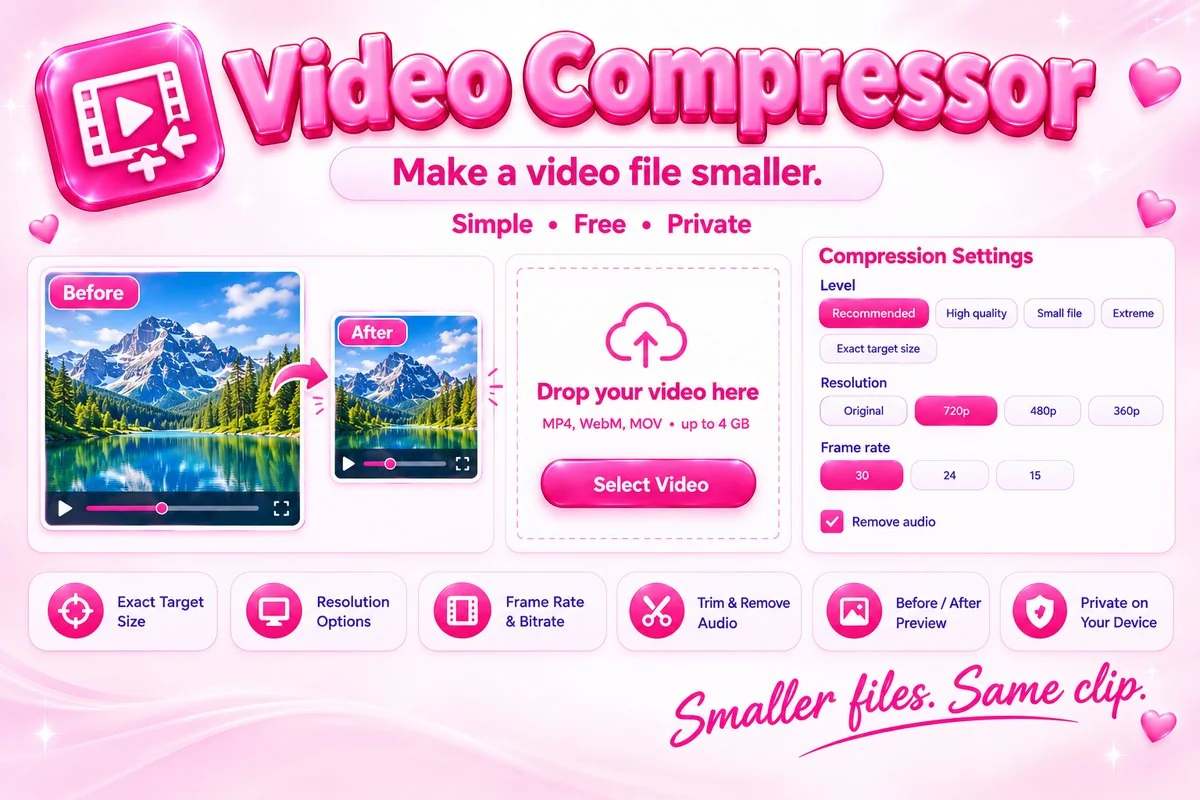
Video Compressor makes MP4, WebM and MOV files smaller so they are easier to email, message, upload and store. Choose a ready-made level, type an exact target such as 16 MB, or fine-tune the resolution, frame rate and bitrate yourself. You can also trim the clip, remove the audio and see the new size, the percentage saved and a preview before you download. Your video is processed in your browser and is never uploaded.
The clip is played and recorded again at the settings you choose, so it takes about as long as the video itself. Short and medium videos suit this tool best.
How to Use It
- Select or drop a video. Its size, length and resolution appear next to the preview.
- Choose a compression level, or pick Exact target size and a limit such as 16 MB.
- Adjust resolution, frame rate, audio and trim if you wish. The estimate updates as you change things.
- Press Compress Video, wait for the progress bar, compare the result and download.
Practical Tips
Lower the resolution first. Going from 1080p to 720p often saves more than any other setting with little visible loss on a phone screen. Remove the audio when you do not need it, which frees bitrate for the picture. Trim the clip to the part you need before compressing, since both time and size drop. Use target mode when a website or app gives a strict size limit. Keep this tab in front while it works, because browsers slow down hidden tabs.
When It Helps
Use it when a video is too big to email, when a chat app or form rejects a large upload, when you want to save space on a drive, or when you need a lighter copy of a screen recording or phone clip to share quickly.