Cut, Trim and Shorten Videos in Your Browser
Video Trimmer & Cutter saves just the part of a video that you need. Drag the two markers or type exact times, preview the selection, and the tool records that section into a new file. You can keep the selected part or remove it and join the rest, change the speed, mute the sound, add a fade, and choose the quality and size of the result. Nothing is uploaded and no account is needed.
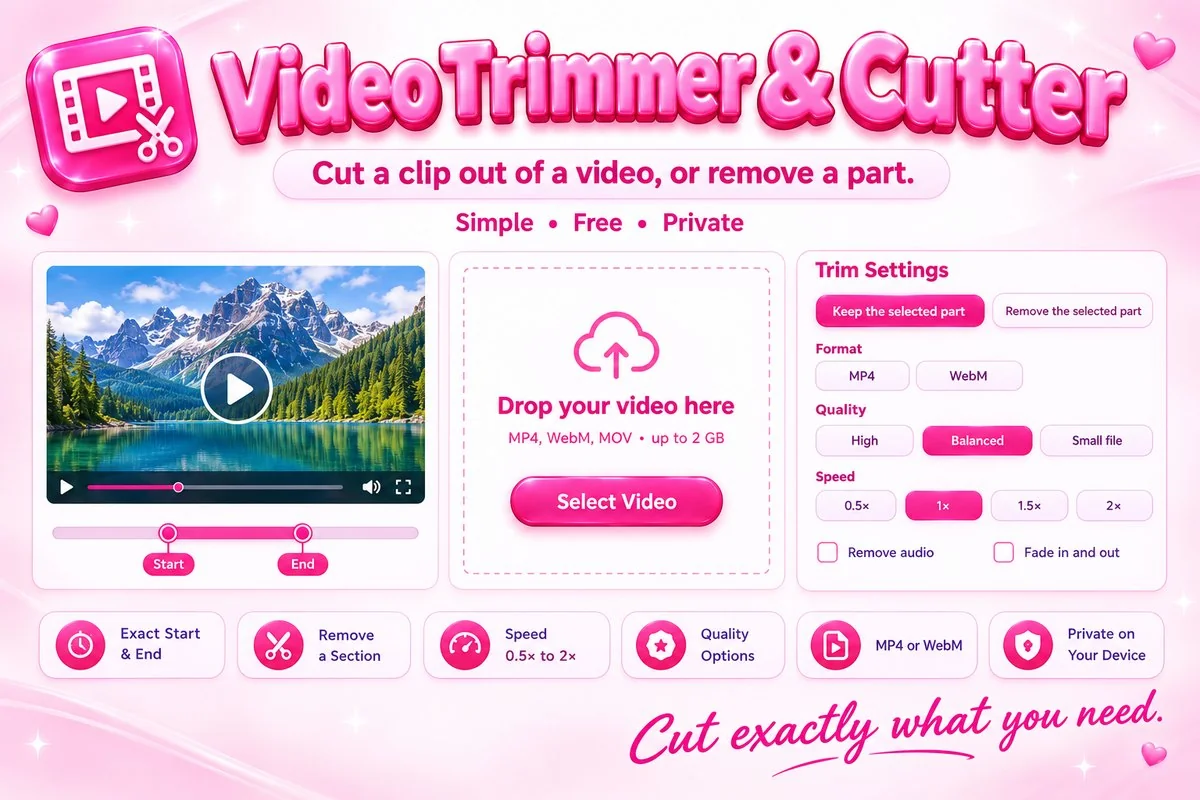
The tool plays your clip and records it again, so the length of the work equals the length of the result. It is best for short and medium clips; very long videos are better cut with desktop software.
How to Use It
- Select or drop a video. It opens in the preview with a trim bar underneath.
- Drag the start and end markers, or type times, or press Start = Now and End = Now while the video plays.
- Choose to keep or remove the selected part, then set format, quality, size and speed.
- Press Cut Video, wait for the progress bar to finish, check the preview and download.
Practical Tips
Use the frame buttons to land exactly on the moment you want. Keep this tab in front while cutting, because browsers slow down hidden tabs. Click the page once before cutting if your browser asks for permission to play sound. Choose High quality for the closest match to the original, or Small file for sharing in chat apps. For social media, trim to the exact length first, then use the Video Compressor if the file is still large.
When It Helps
Use it to take a highlight out of a longer recording, remove a mistake from the middle of a screen recording, shorten a clip for a story or reel, speed up a slow section, or save a short piece of a lecture or meeting you recorded yourself.