Make a Photo Collage in Your Browser
This collage maker places up to 50 photos on one canvas. Start with a classic grid, a mosaic that keeps each photo's shape, a heart, slanted diagonal strips, or a free style board where you drag every picture into place. Spacing, borders, rounded corners and backgrounds are all adjustable, and the preview updates as you move each control. Your photos stay on your device.
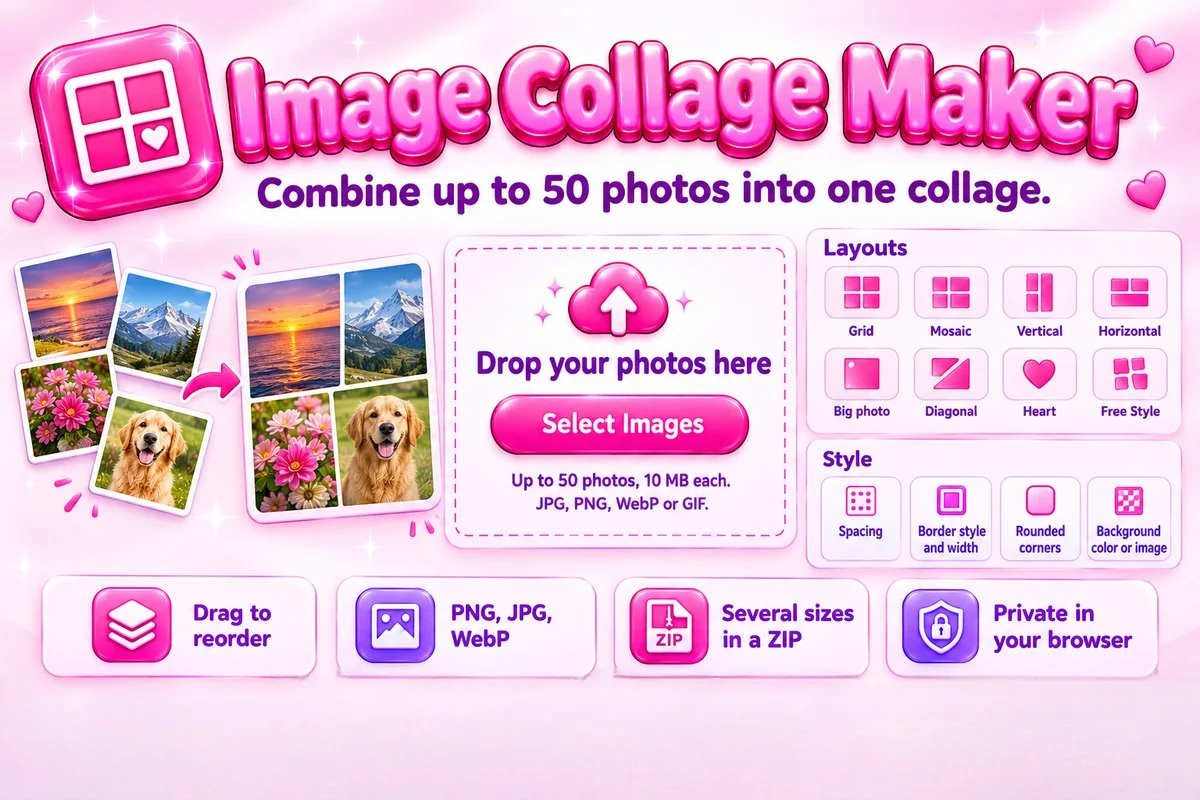
When you are happy, download one image or tick several canvas sizes and save them together as a ZIP, ready for different social networks or for print.
How to Make a Collage
- Add photos. Select, drop or paste your images.
- Pick a layout and size. Reorder photos by dragging them.
- Style it. Set spacing, border, corners and background.
- Download. Save PNG, JPG or WebP, or a ZIP of sizes.
Tips for a Better Collage
- Use Mosaic when you mix portrait and landscape photos, so little gets cropped.
- For a hero image, choose a big-photo layout and move your best picture to the first position.
- Heart works best on a square canvas, and Diagonal looks good with three to six photos.
- Set spacing to 0 for a seamless block, or add a white border for a printed-photo look.
- Choose PNG for the sharpest result and JPG or WebP when a smaller file matters. Photos are reduced while editing, so very large collages may be slightly softer.
When This Tool Helps
Collages are handy for social posts and stories, travel recaps, family albums, product photo sheets, before-and-after comparisons and thumbnails. If you want a different subject behind your photos first, try the background remover.
Frequently Asked Questions
Are my photos uploaded to a server?
No. The collage is built in your browser, so your photos never leave your device and nothing is added to the finished picture.
How many photos and which formats can I use?
You can add up to 50 photos at once. JPG, PNG, WebP and GIF files up to 10 MB each are accepted. Animated GIFs use their first frame. You can download the collage as PNG, JPG or WebP.
Which layouts are available?
Grid, Mosaic, Vertical, Horizontal, four big-photo layouts, Diagonal, Heart and Free Style. Mosaic keeps each photo's shape, and Heart arranges the photos inside a heart outline.
How does Free Style work?
Photos are scattered on the canvas. Drag any photo to move it, then use the Size and Rotate sliders or the Bring to front button. Press Scatter again to start from a new arrangement.
Can I use a transparent or custom background?
Yes. Choose a background color, upload your own background image, or tick Transparent background and download a PNG or WebP. JPG cannot store transparency, so it uses white instead.
Can I download the collage in several sizes?
Yes. In the Export tab tick the sizes you need and press Download Sizes (ZIP). Each size is laid out again, so nothing is stretched.