About This Color Palette Extractor
A color palette is a short list of colors that sums up an image. This color palette extractor reads the picture you choose, finds its main colors and shows each one with HEX, RGB and HSL codes, so you can reuse them in a design, a website or a presentation. The image is analyzed inside your browser and is never uploaded.
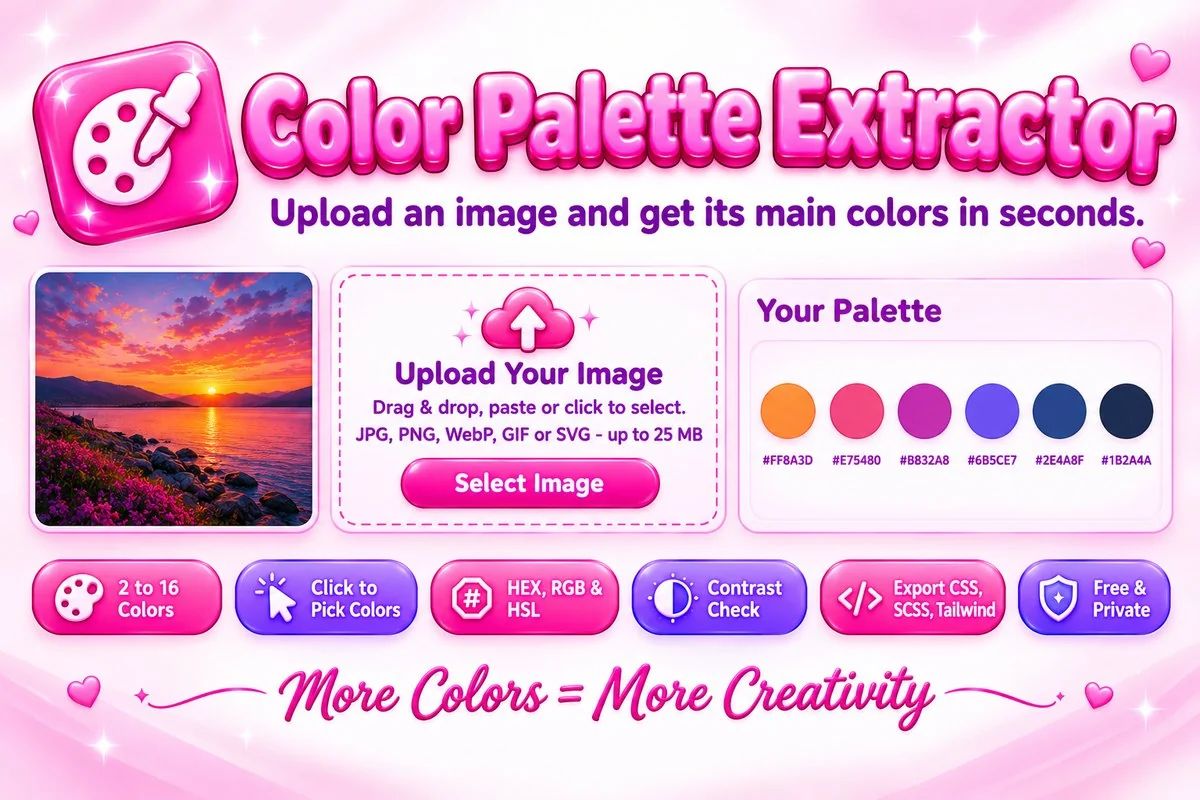
Choose between 2 and 16 colors and sort them by frequency, hue or brightness. Click anywhere on the image to add the exact color of that spot, ignore white or black backgrounds, and check whether white or black text is readable on each color. You can export the result as CSS variables, SCSS variables, a Tailwind config, JSON or a plain HEX list, or save a PNG swatch strip.
How to Extract Colors from an Image
- Choose an image, drop it on the page or paste it with Ctrl+V.
- Set how many colors you want. For a logo on a white background, tick Ignore white so the background does not use up a slot.
- Click the image to add exact colors, or click a swatch to copy its code as HEX, RGB or HSL.
- Pick an export format and copy the code or download it as a file. The Color Harmonies section suggests matching colors for any palette color.
Tips for Better Palettes
- Flat logos give accurate colors because they contain only a few real ones. Photos with soft gradients give blended colors, so raise the color count or click the exact tones you need.
- Check contrast before using a color for text or buttons. A ratio of 4.5:1 or higher passes the WCAG AA level for normal text.
- Screens and printers show color differently, so confirm the final values with your printer for print work.
- Keep a design to five or six colors: one main color, one or two supporting colors and a neutral.
When This Tool Helps
Use it to build a brand palette from a logo, match a website theme to a hero photo or choose slide colors that fit a picture. Developers can paste the CSS or Tailwind export straight into a project. If you only need the color of a single pixel, the Image Color Picker is quicker, and the Favicon Generator is a natural next step for a brand-colored icon.
Frequently Asked Questions
Is my image uploaded to a server?
No. The colors are read in your browser with the Canvas API, so your image never leaves your device.
How many colors can I extract?
Choose 2 to 16 colors with the slider and sort them by frequency, hue or brightness. The palette updates as you change the setting.
Can I pick an exact color from my image?
Yes. Click any spot on the image and that exact color is added to the palette. Remove it again with its close button or Remove Colors I Picked.
Which export formats are available?
CSS variables, SCSS variables, a Tailwind config, JSON and a plain HEX list, each with Copy and Download File buttons. You can also save a PNG swatch strip.
How are the colors chosen?
The tool uses median-cut quantization. It groups similar pixels together and averages each group into one color, which works well for logos and photos.
What does the contrast rating mean?
For each color the tool shows whether white or black text is easier to read and the WCAG contrast ratio. A ratio of 4.5:1 or higher passes AA for normal text.