Crop, Rotate and Flip Images Online
Trim away the parts of a picture you do not need, or cut it to the exact shape a platform expects, such as a square profile photo or a 16:9 banner. Everything happens in your browser, so your files are never uploaded.
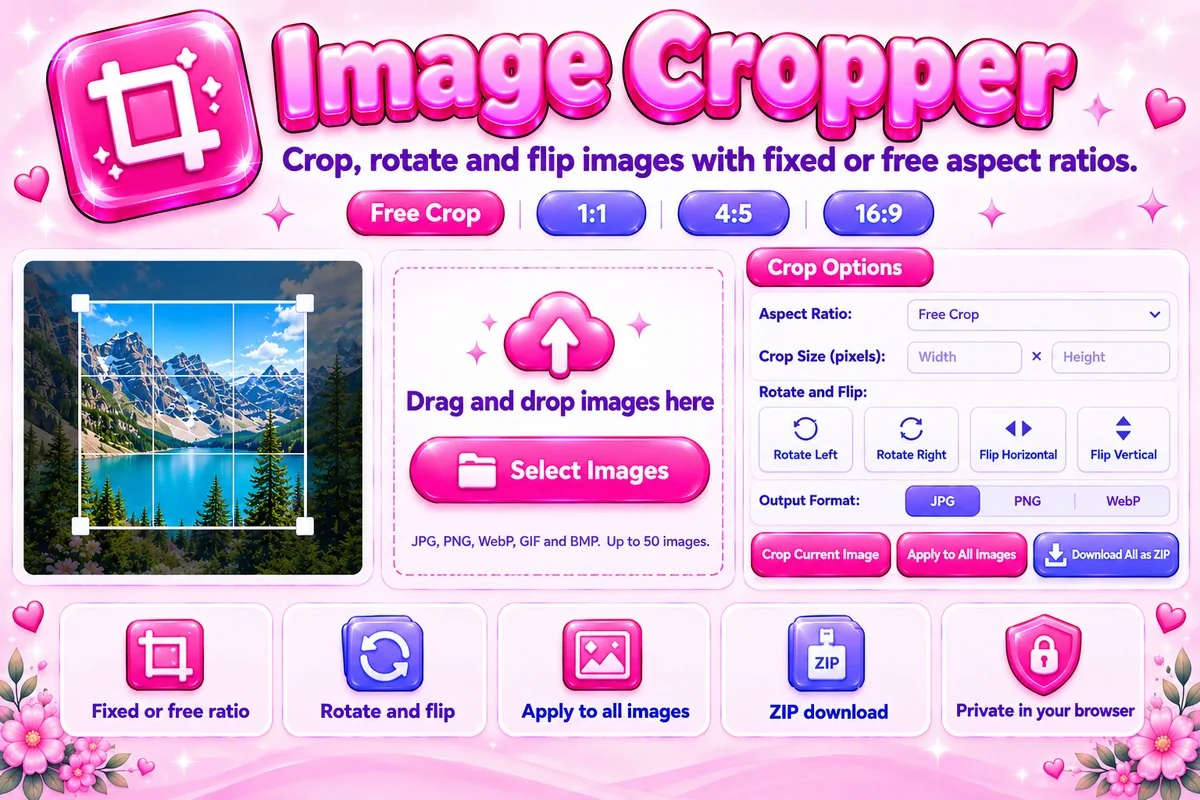
How to Crop an Image
- Add imagesSelect, drag in or paste up to 50 images.
- Choose a shapePick a ratio or Free Crop. You can also type exact width and height in pixels.
- Adjust the cropDrag inside the box to move it and drag a corner to resize. Arrow keys nudge it by one pixel, and Shift makes the step ten.
- SaveChoose JPG, PNG or WebP, then crop the current image or apply the crop to all images and download the results.
Common Aspect Ratios
1:1 suits profile pictures and many social posts. 4:5 is a tall portrait format used for feed posts, 9:16 fits stories and short videos, 16:9 matches widescreen video and banners, and 3:2 is the classic photo shape. Pick the ratio first, then place the box, so the framing stays right.
When Cropping Helps
Cropping removes distractions, centers the subject and gives the picture the exact shape a platform expects, such as a square profile photo, a story, a thumbnail or a banner. If you also need exact pixel dimensions for the whole picture rather than a cut-out, the Image Resizer is the better fit.