Find the Exact Color in Any Image
This tool lets you click any pixel in a picture and read its exact color as HEX, RGB, HSL, HSV and CMYK. A magnifier follows your pointer so you can aim at a single pixel, and the picked color is given a name so you can describe it in words. Your images stay in your browser and are never uploaded.
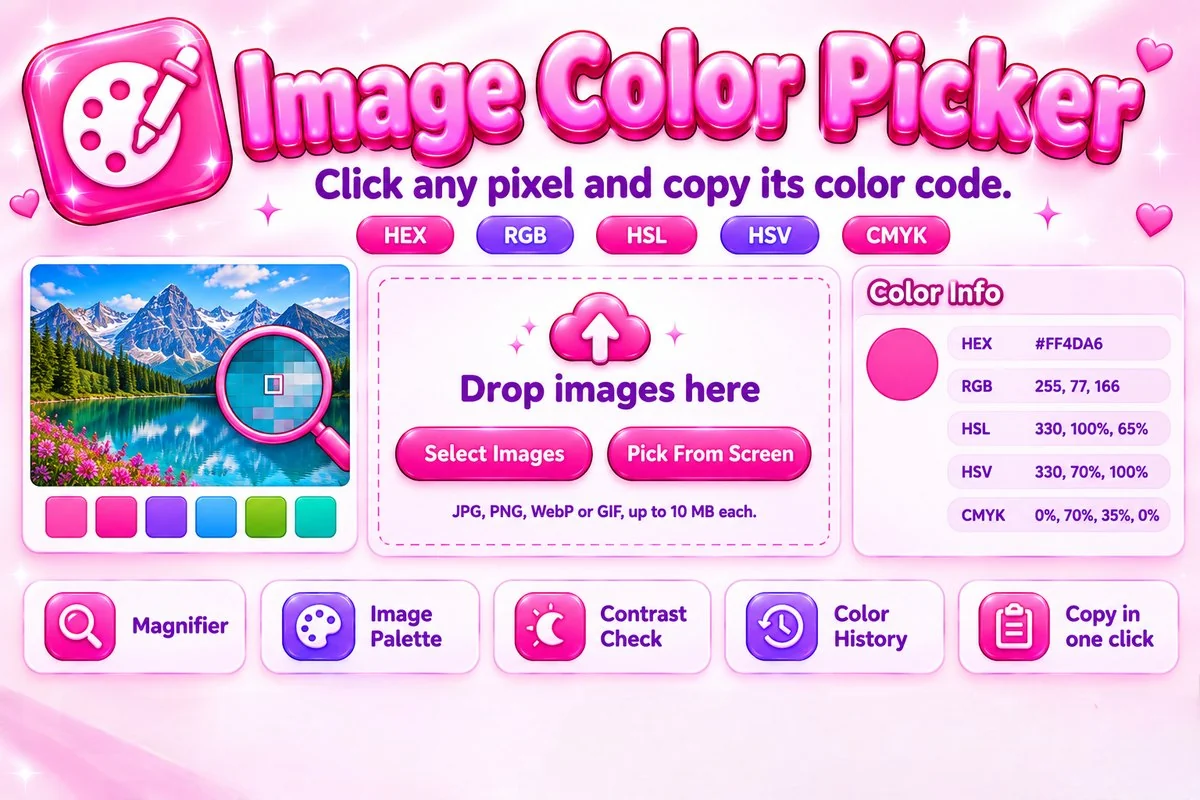
Besides single colors, it builds a palette from each image, suggests matching colors, checks text contrast and keeps a history of everything you pick. You can add up to 50 images and download all their palettes together as a ZIP.
How to Pick a Color
- Add images. Select, drop or paste your pictures.
- Click a pixel. The magnifier helps you aim and the codes update at once.
- Copy. Copy one format, all formats or a CSS variable.
- Save a palette. Download an image's palette or export your history.
Which Color Format Should You Use?
- HEX is the usual choice for websites and CSS, for example #2563EB.
- RGB lists red, green and blue values and is common in code and graphics tools.
- HSL and HSV describe hue, saturation and lightness or value, which makes lighter or darker variants easy to create.
- CMYK is for print. The values here are a simple conversion, so a print shop may adjust them for a specific paper.
Tips for Accurate Results
- Click the middle of a flat area. Edges and gradients blend neighboring colors.
- Use a PNG version of a logo when you have one, because JPG compression slightly shifts colors.
- Your screen and camera change how a color looks. The codes describe the pixel value stored in the image.
- Type any HEX code into the HEX box to convert it and see its matches and contrast.
When This Tool Helps
Designers and developers use it to match brand colors from a logo or screenshot, creators use it to build a palette from a photo, and anyone can use the contrast check to see whether text will be readable on a chosen color. For a dedicated palette workflow, try the color palette extractor.
Frequently Asked Questions
How do I pick a color from an image?
Add an image, then click or tap any point on it. The color under that point is selected, and its HEX, RGB, HSL, HSV and CMYK values appear instantly. Use the arrow keys and Enter if you prefer the keyboard.
Are my images uploaded anywhere?
No. Picking colors and building palettes happen in your browser with the Canvas API, so your images never leave your device.
Which formats and sizes are supported?
You can add JPG, PNG, WebP and GIF images up to 10 MB each, and up to 50 images at once. Animated GIFs use their first frame.
Where is my color history saved?
Picked colors are kept on the page only while it is open. They are not uploaded anywhere and are cleared when you reload or close the page, so copy or export anything you want to keep.
Why can a picked color differ slightly from the original file?
Very large images are scaled down to 2400 pixels on the long side for speed, and photos contain noise and compression. For the most exact value, click the center of a flat area while watching the magnifier.
Can I pick a color from anywhere on my screen?
In browsers that support the EyeDropper feature, such as Chrome and Edge on desktop, an extra Pick From Screen button appears. It samples any pixel on your screen, not only inside your image.