About This Photo Color Changer
Changing the color of a car, a shirt, a wall or a flower usually needs a photo editor and a lot of patience. This photo color changer lets you click the color you want to change, pick a new one, and see the result at once. Your photo is edited inside your browser and is never uploaded.
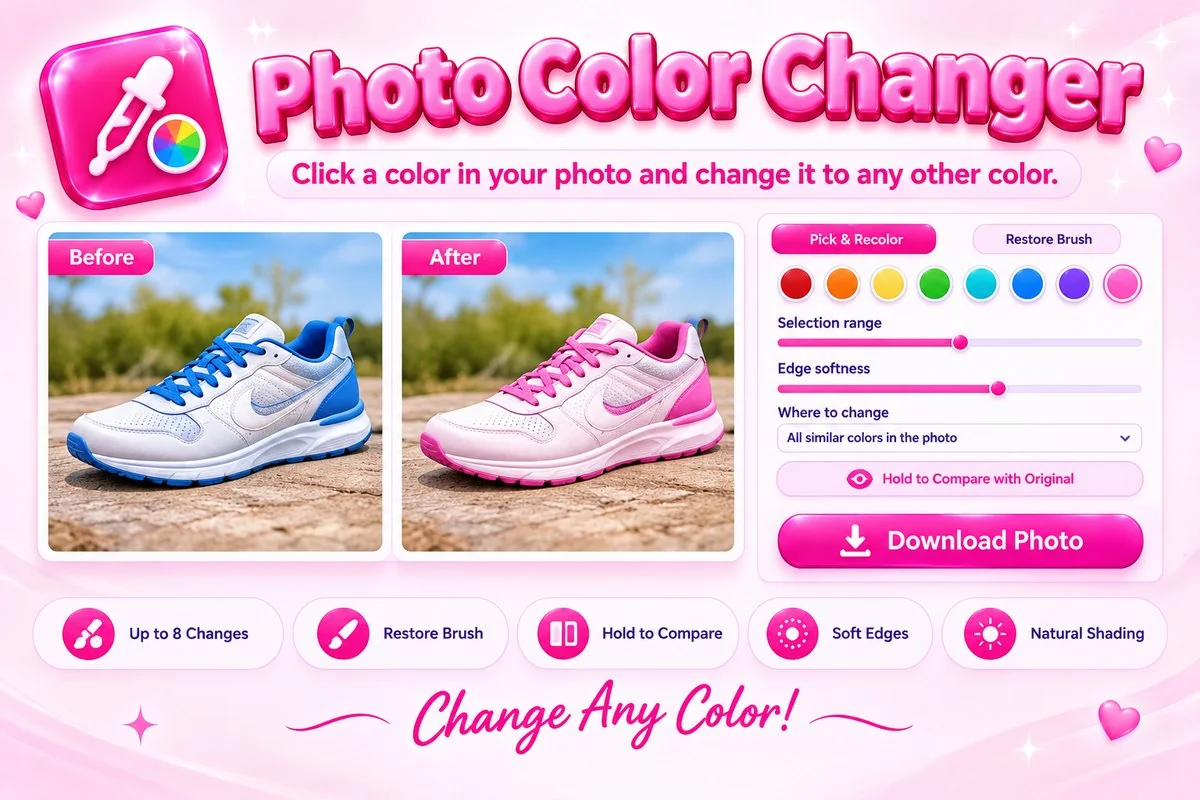
The tool selects pixels by how close they are to the color you click, with soft edges so the change blends in. You can change every similar color in the photo or only the connected area you clicked, keep the natural shading, or shift the hue instead of replacing the color. Make up to eight changes, fix mistakes with the Restore Brush, hold a button to compare with the original, and save the result as PNG, JPG or WebP.
How to Change a Color in a Photo
- Choose a photo, drop it on the page or paste it with Ctrl+V.
- Click the color you want to change. The tool selects similar colors and shows the change in your list.
- Pick a new color. Adjust Selection range and Edge softness until the right area is covered, or choose Only the connected area I clicked.
- Use the Restore Brush for any spots that changed by mistake, hold Compare to check the original, then press Download Photo.
Tips for a Natural Result
- Click in the middle of a flat part of the object. The tool averages a small area around your click to pick the color.
- Keep Include shadows and highlights on for objects with folds or reflections. Turn it off if the change spreads to areas it should not.
- Use a small Selection range and a little Edge softness for objects with a clear edge, and a larger range for blurry or shaded areas.
- Changing to white, black or gray works best with natural shading on. For a bold color change, pick a color of a similar brightness.
When This Tool Helps
Use it to preview a new wall or car color, try another color of clothing for a product photo, match a flower or a prop to a brand color, or fix an object that has the wrong color. To read a color value from a picture, use the Image Color Picker, and to cut an object out of its background, use the Image Background Remover.
Frequently Asked Questions
Is my photo uploaded to a server?
No. The color change is done in your browser with the Canvas API, so your photo never leaves your device.
How do I change only one object?
Choose Only the connected area I clicked. The change then spreads only to touching pixels of a similar color, so a second object of the same color stays as it was.
Why did other parts of my photo change too?
Those parts had similar colors. Lower the Selection range, switch to the connected area option, or paint over the mistake with the Restore Brush.
Can I change more than one color?
Yes. Click another color to add a new change, up to 8 in total. Select any change in the list to edit its color, range or method, or remove it with the cross.
What does Keep natural shading do?
It keeps the light and dark detail of the original, so a red shirt turned blue still shows folds and highlights instead of becoming a flat blue shape.
What are the size limits?
Photos can be JPG, PNG or WebP up to 10 MB. Larger pictures are scaled down to 2000 pixels on the long side for editing and saving.