Remove Photo Backgrounds Without Uploading Them
This tool finds the main subject in a photo and makes everything behind it transparent. You can keep the transparency, or place the subject on a new color, a blurred copy of the original or a picture of your own. Everything runs in your browser, so your photos stay on your device.
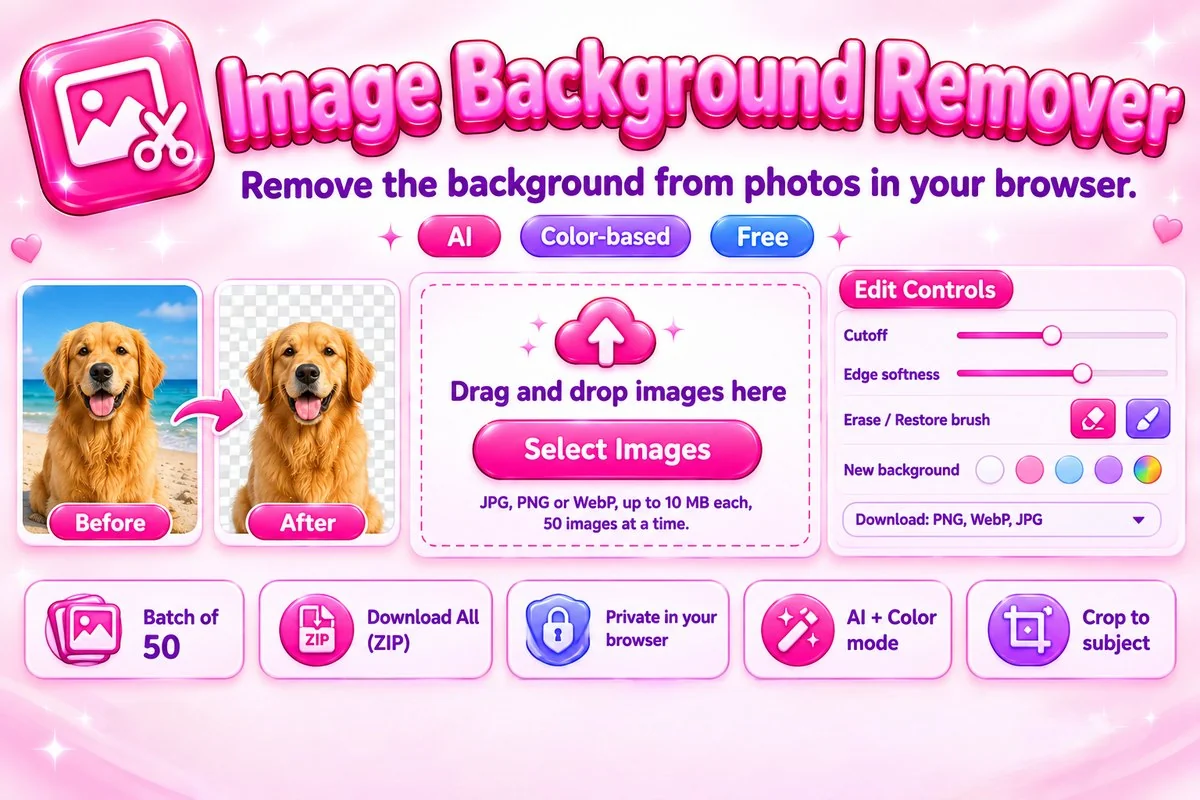
The AI mode downloads a compact model of about 5 MB the first time you use it. If it cannot load, for example because you are offline, you can switch to the color-based mode, which works well on plain backgrounds.
How to Remove a Background
- Add photos. Select, drop or paste up to 50 images.
- Press Remove Background. Each image is processed in turn.
- Fine-tune. Adjust the sliders, paint with the brush and pick a background.
- Download. Save one image, or choose Download All for a ZIP.
Tips for Cleaner Results
- Choose a sharp photo where the subject clearly differs from what is behind it.
- If a light halo stays around the subject, raise Cutoff a little. If parts disappear, lower it.
- Use PNG when you need transparency and the sharpest edges. WebP is smaller and also keeps transparency. JPG cannot be transparent, so it uses your chosen background or white.
- Hair, fur and glass are the hardest cases. Painting with the Restore brush usually fixes small gaps.
- Large photos are scaled down to 4096 pixels on the longest side before processing so the page stays responsive.
When This Tool Helps
A clean cut-out is useful for product photos on a white background, profile pictures, thumbnails, stickers, presentations and design mock-ups. The batch list saves time when you have a whole set of similar photos, and you can combine your finished cut-outs in the collage maker.
Frequently Asked Questions
Is my photo uploaded to a server?
No. Your photos are processed inside your browser and never leave your device. Only the small AI model file is downloaded from the internet, and only when you use the AI mode.
Which formats and sizes can I use?
You can add JPG, PNG and WebP images up to 10 MB each, and up to 50 images at once. Download PNG or WebP files to keep transparency, or JPG when you want a solid background.
Why does the first cut-out take longer?
The AI mode downloads a model of about 5 MB the first time you press Remove Background. After that it is reused for every image on the page, and browsers usually keep it cached for later visits.
What can I do if the edges are rough or part of the subject is missing?
Move the Cutoff and Edge softness sliders first. For small mistakes, switch to the Erase or Restore brush and paint over the area. Undo takes back your last brush strokes.
How do I process many photos at once?
Add up to 50 images, press Remove Background, and the tool works through them one by one. Your background, edge and format choices apply to every image, and Download All saves them in one ZIP file.
When should I use the color-based mode?
Use it for photos with a plain, even background, or when the AI engine cannot load. It removes the background color connected to the edges of the picture, and you can set the tolerance or click the original photo to choose the background color.