Image Resizer
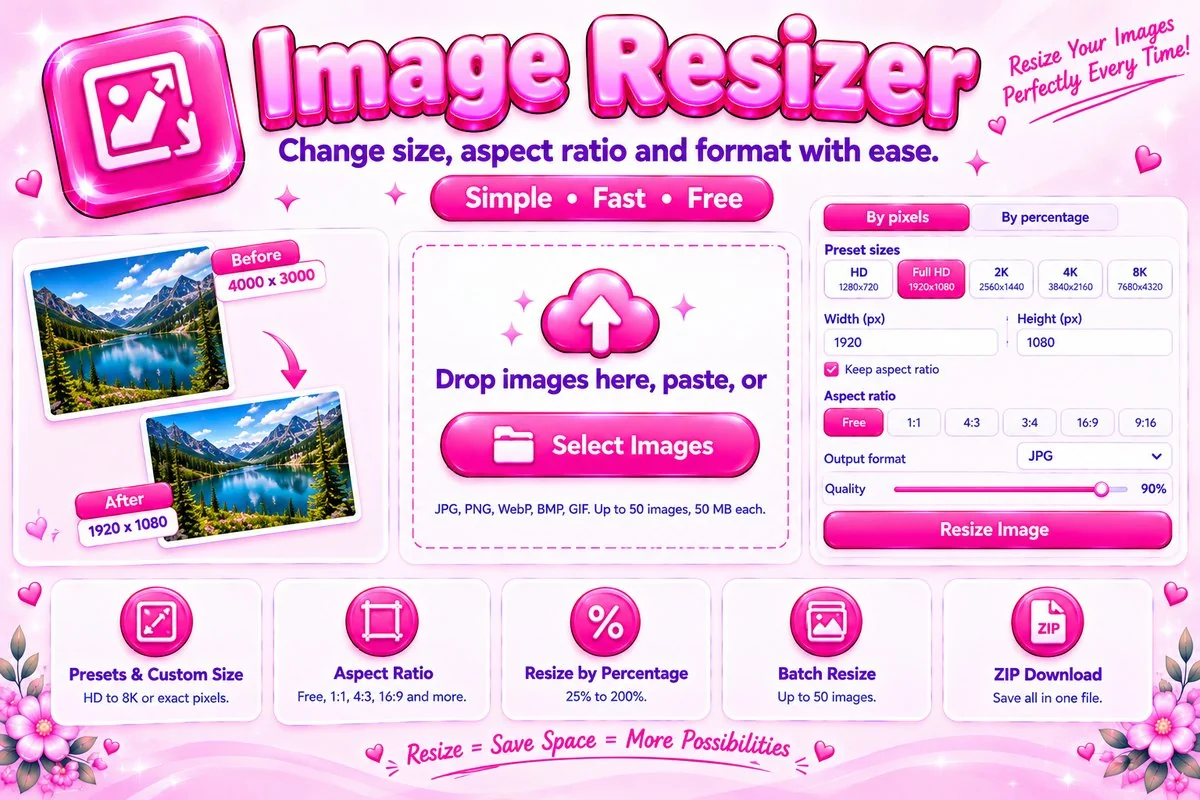
Change image size, aspect ratio and format with ease, free and right in your browser.
Drop images here, paste, or
JPG, PNG, WebP, BMP and GIF, up to 50 images at a time (50 MB each). For animated GIFs only the first frame is used.
Original
Resized
With several images, each one is scaled to fit inside the width and height.
Each image is scaled by the same percentage.
Change Image Size Without Leaving Your Browser
This resizer changes the width and height of JPG, PNG, WebP, BMP and GIF images. Type exact pixels, pick a preset such as Full HD or 4K, or scale by a percentage between 25% and 200%. You can process up to 50 images in one go and save the results one by one or as a ZIP. Your files are handled on your own device and are never uploaded.
How to Resize an Image
Add images
Select, drag in or paste your pictures. Pick one in the list to compare it.
Set the size
Use a preset, enter pixels or choose a percentage. Keep aspect ratio avoids stretching.
Resize and save
Pick a format and quality, press Resize, then download each file or the ZIP.
Common Sizes
| Use | Size in pixels |
|---|---|
| Square social post | 1080 × 1080 |
| Portrait social post | 1080 × 1350 |
| Story or vertical video cover | 1080 × 1920 |
| Video thumbnail | 1280 × 720 |
| Link preview image | 1200 × 630 |
Platforms change their guidance now and then, so check the current requirements before you upload.
Tips for Good Results
- Making an image smaller usually looks fine. Enlarging it adds pixels the original never had, so it can look soft. For that, try the Image Sharpener & Upscaler.
- Choose JPG for photos, PNG for screenshots, logos and transparency, and WebP for small files on websites. JPG and WebP are lossy, so a lower quality slider means a smaller file with some detail lost.
- Still too heavy? Run the result through the Image Compressor.
- Need only part of a picture? Use the Image Cropper first.
When Resizing Helps
Smaller images load faster on web pages and fit email limits. Exact dimensions are needed for profile pictures, thumbnails, product photos and print layouts.
Frequently Asked Questions
Are my images uploaded to a server?
No. Resizing happens in your browser with the canvas feature, so your images never leave your device.
Which formats can I add and save?
You can add JPG, PNG, WebP, BMP and GIF images. Results can be saved as JPG, PNG or WebP. For animated GIFs only the first frame is used.
How do I resize without stretching the picture?
Leave the Keep aspect ratio option switched on. The height follows the width automatically, and with several images each one is scaled to fit inside your width and height.
Can I resize many images at once?
Yes. Add up to 50 images, choose your settings and press Resize. Download each result separately or everything in one ZIP.
What does the quality slider do?
It applies to JPG and WebP. Higher values keep more detail but make larger files, while lower values make smaller files with some loss of detail. PNG has no quality setting.
Is this tool free?
Yes. It is free to use with no sign-up and no watermark, because all the work happens on your own device.