Combine Pictures Into a Clean PDF
Image to PDF Converter puts photos, scans and screenshots into a single PDF, or into separate PDFs if you prefer. You choose the page size, orientation, margins and background, rotate any image, place two, four or eight images on one page, add page numbers, and protect the file with a password. The PDF is built entirely in your browser, so your pictures stay private.
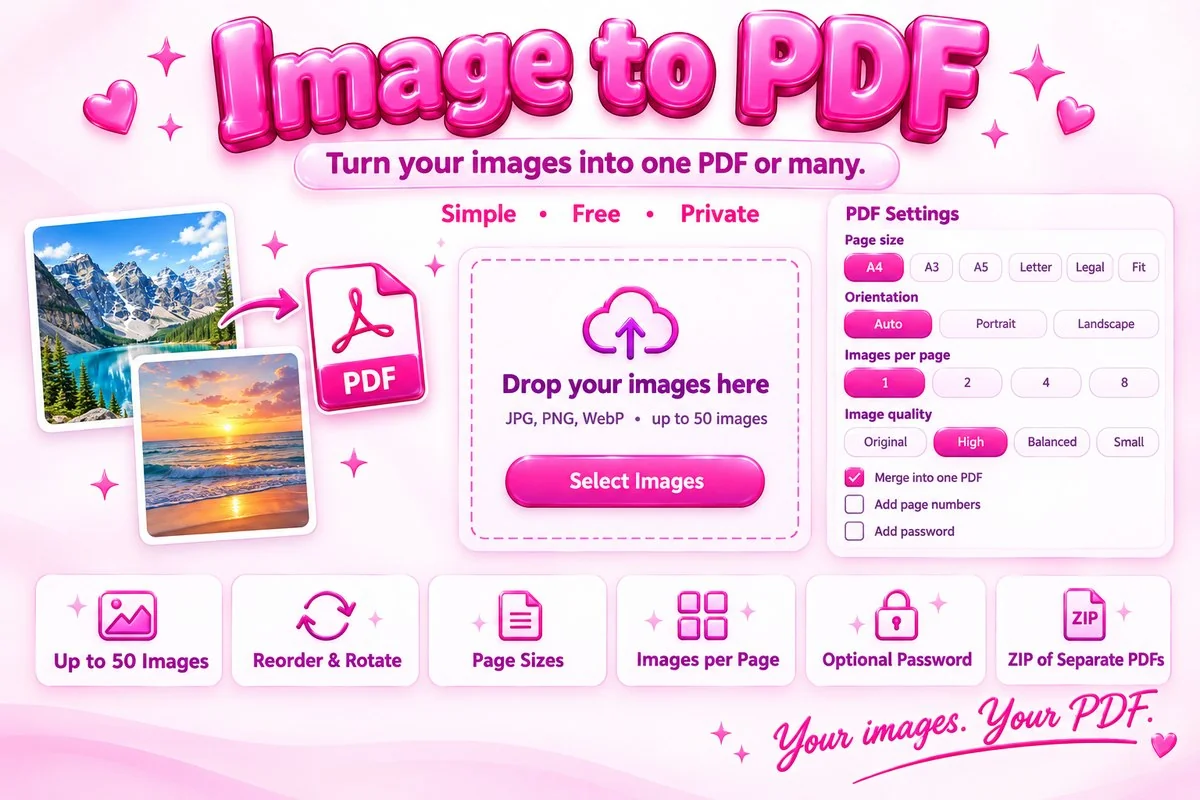
It is a simple way to hand in homework, send a set of receipts, assemble a portfolio or turn phone photos of a document into one file that is easy to email.
How to Use It
- Select or drop your images. Use the arrows, drag handles or Sort buttons to set the page order, and rotate any sideways pictures.
- Pick a page size, orientation and margin. Leave Auto orientation on if your images mix portrait and landscape.
- Choose the image quality and any extras such as page numbers or a password.
- Press Create PDF, then download it or preview it in a new tab.
Practical Tips
Pick the right quality. Original keeps JPG files exactly as they are, which gives the best fidelity but the largest PDF. High suits most photos. Balanced and Small shrink big phone photos so the PDF is easier to email. Choose fit or fill. Fit inside never crops anything; Fill the space covers the page and trims the edges. Use Fit to image when you want each page to match its picture instead of a paper size. Keep margins for printing. Many printers cannot print to the very edge, so a small or medium margin is safer. Remember your password. It cannot be recovered if you forget it.
When It Helps
Use it when a form asks for a single PDF upload, when you have photographed a multi-page document with your phone, when you want a printable contact sheet of several pictures, or when you need to send images in a format that looks the same on every device.