About This PDF Compressor
Large PDFs are hard to email and slow to upload. This PDF compressor makes a smaller copy of your file right in your browser, so the document never leaves your device. It is honest about the trade-off: to save space it redraws every page as an image, which means the compressed file has no selectable text.
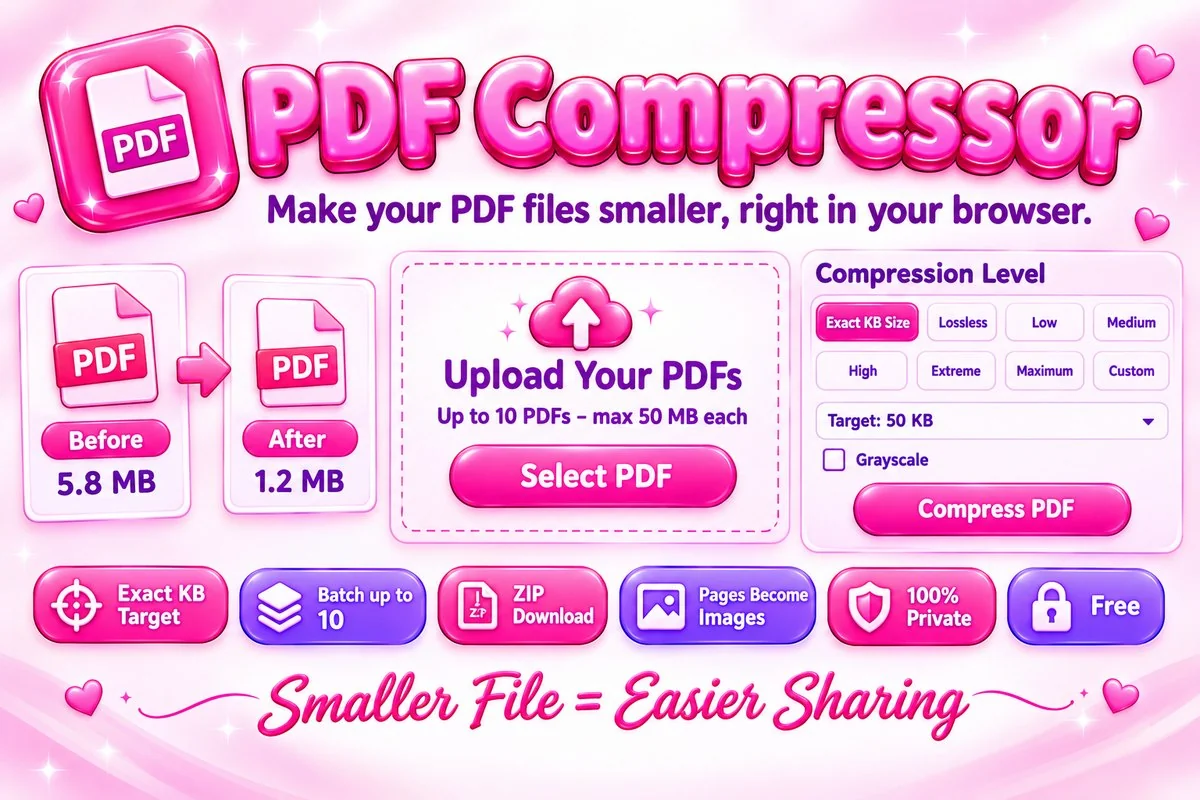
You can ask for an exact size such as 50 KB, pick a ready-made level from Low to Maximum, or set image quality and resolution yourself. A grayscale option shrinks scans further, and you can compress up to 10 PDFs in one go and download them together as a ZIP file. A Lossless option rebuilds the file structure and keeps the text, but usually saves only a little.
How to Compress a PDF
- Select one or more PDF files, or drop them on the page. Each file can be up to 50 MB.
- Choose Exact KB Size and a target, or pick a level. Use Custom to set quality and resolution yourself.
- Press Compress and wait while each page is processed. Large files take longer.
- Check the new size, then download each PDF or press Download All for a ZIP file.
Tips for Smaller PDFs
- Start with Medium. If the file is still too large, move to High or set a target size.
- Scanned pages in black and white shrink a lot with the grayscale option turned on.
- Do not use this tool on a PDF whose text you need to copy or search. Keep the original file as a backup.
- Very low targets make pages blurry. Check the result before you send it, and choose a slightly larger target if it is hard to read.
When This Tool Helps
Use it when an upload form has a size limit, when an email attachment is rejected, or when you want to archive scanned papers without using much storage. To join several documents first, use the PDF Merger & Splitter, or turn pictures into a PDF with the Image to PDF tool.
Frequently Asked Questions
Is my PDF uploaded to a server?
No. The PDF is opened, compressed and rebuilt in your browser. The file never leaves your device.
Will the text in my PDF still be selectable?
No. Except in Lossless mode, each page is redrawn as an image, so the result looks the same but its text can no longer be selected or searched.
Does compression reduce quality?
Yes, in the image levels. Stronger levels make a smaller file with lower image quality. Lossless mode keeps everything but usually saves very little.
Which PDFs compress best?
Scanned documents and PDFs with large photos shrink the most, because most of their size is image data. PDFs that are mostly text may even get larger.
Can I set an exact file size?
Yes. Choose Exact KB Size and a target such as 50 KB or 200 KB. The tool tries different quality and resolution settings, and tells you if the target cannot be reached.
Can I open a password-protected PDF?
No. Remove the password in your PDF viewer first, then try again. Files over 50 MB or with more than 300 pages are not supported.