Save PDF Pages as Images on Your Own Device
This converter draws each page of your PDF and saves it as a JPG, PNG, WebP or BMP image. You choose which pages to convert, how large the images should be and how they are compressed. The work happens in your browser, so your documents stay on your device.
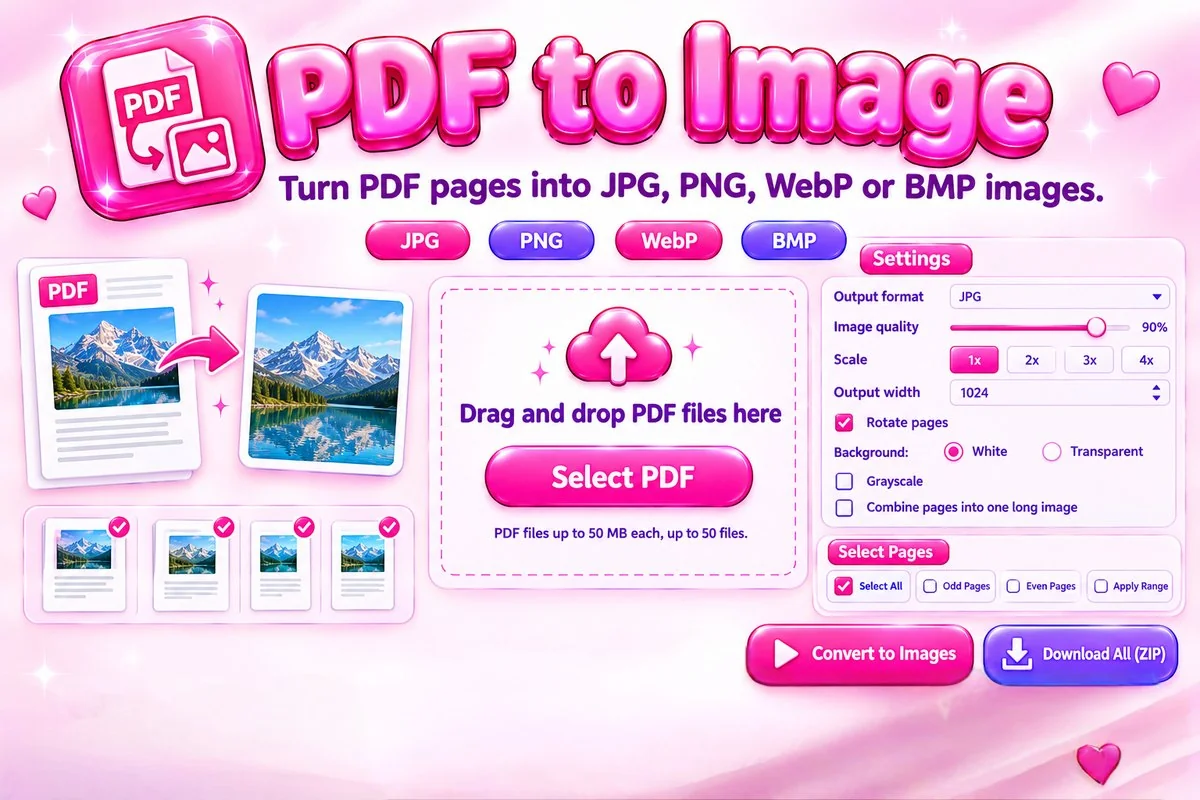
You can add several PDFs, convert only the pages you need, combine pages into one long picture and download everything as a ZIP. Password-protected files must be unlocked first.
How to Convert a PDF to Images
- Add your PDF. Select, drop or choose several files.
- Pick pages. Click thumbnails or type a range.
- Choose settings. Set the format, scale and quality.
- Convert and save. Download single images or a ZIP.
Choosing Format, Size and Quality
- JPG gives the smallest files for photos and scans. Lower the quality slider to shrink them further.
- PNG keeps text and line art crisp and supports a transparent background, but the files are larger.
- WebP is usually smaller than JPG or PNG at similar detail, and modern browsers and apps open it.
- Use 2x for everyday sharing, and 3x or 4x when you need to zoom in or print. Higher scales make larger files.
- A fixed output width, such as 1080 px, is handy when every image must have the same size.
When This Tool Helps
Turning pages into images is useful for sharing a single page in chat, adding a slide or invoice to a presentation, posting a document preview, or using a page as a thumbnail. To rebuild a PDF from pictures, use Image to PDF.
Frequently Asked Questions
Are my PDF files uploaded to a server?
No. The pages are drawn and saved as images inside your browser, so your PDF never leaves your device. The PDF engine itself is loaded from a public script host the first time you add a file.
Which formats, sizes and limits apply?
You can save pages as JPG, PNG, WebP or BMP. Each PDF can be up to 50 MB, you can add up to 50 PDFs at once, and one conversion run handles up to 300 pages.
Which image format should I choose?
Pick JPG for photos and small files, PNG for sharp text, diagrams and transparency, and WebP for small files with good detail. BMP is uncompressed, so the files are large, but some older programs need it.
How do I convert only some pages?
Click page thumbnails to select them, use Select All, Odd or Even, or type a range such as 1-3, 5, 8-10 and press Apply Range. Only the selected pages are converted.
How do I get sharper or larger images?
Raise the scale to 3x or 4x, or set an output width such as 2560 px. Very large pages are limited to about 36 megapixels so your browser does not run out of memory.
Can I convert a password-protected PDF?
No. Protected files cannot be opened here, and the tool tells you when it meets one. Remove the password in the program that created the PDF, then add the file again.