Image to Text OCR

Extract printed text from photos, scans and screenshots in about 40 languages. Cleans up and straightens the picture first for better results, then lets you copy, edit and download the text.

Runs on your device: your pictures are read inside your browser and are not uploaded. A small language file downloads once, the first time you use each language.

Drop your images here, or

JPG, PNG, WebP, GIF or BMP. Up to 50 images, 50 MB each. You can also paste an image with Ctrl+V.

Turn Pictures of Text Into Editable Text

Image to Text OCR reads printed words from a photo, scan or screenshot and gives them back as text you can copy, edit and save. Before reading, it can enlarge small pictures, even out the contrast, straighten tilted lines and flip light-on-dark text, which makes a real difference to accuracy. You can process up to fifty images in one go, in about forty languages, and nothing about the picture itself is uploaded.
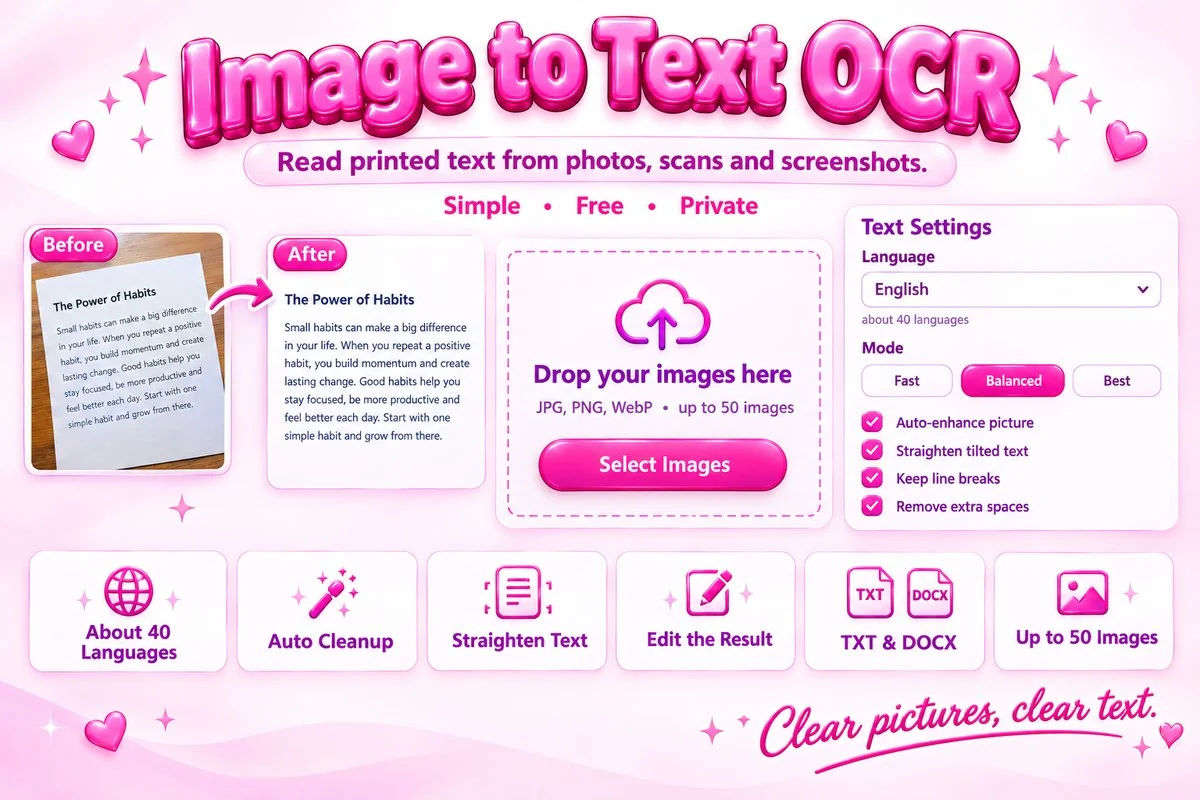
Banner showing a photo of text being converted to editable text with language and output settings
Choose the language and cleanup options, then read the text.

OCR means optical character recognition. The reading engine works best on clear printed text, so the quality of the original picture matters more than any setting.

How to Use It

  1. Add one or more images. Click a thumbnail to see it and rotate it if it is sideways.
  2. Choose the main language, and a second one if the text mixes scripts.
  3. Leave Auto-enhance on, pick Balanced or Best accuracy, and press Extract Text.
  4. Check the result, fix any slips in the text box, then copy it or download TXT or DOCX.

Practical Tips

Start with a good picture. Hold the camera straight above the page, use even light and avoid shadows and glare. Pick the right language. A wrong language is the most common reason for strange characters. Use the layout setting. Choose One block of text for a single paragraph or a book page, and Scattered text for labels, menus and screenshots. Try Best accuracy for difficult photos. It reads the picture twice with different cleanups and keeps the more confident result. Review numbers and names. Characters such as 0 and O, or 1 and l, are the easiest for any OCR to confuse.

When It Helps

It is useful for copying a quote from a photographed book page, turning a scanned letter into editable text, pulling details from a receipt or business card, saving the text of a screenshot, or digitising printed notes in Hindi, English and other languages.

Frequently Asked Questions

How accurate is the text it reads?

Accuracy depends mostly on the picture. Clear, well-lit, straight, printed text at a decent size is usually read very well, while blur, shadows, tiny type, decorative fonts and low resolution cause mistakes. No OCR tool is perfect, so always skim the result. The Best accuracy mode tries two different cleanups and keeps the one the reader is more confident about.

Can it read handwriting?

Not reliably. This tool is built for printed text such as documents, books, signs, receipts and screenshots. Handwriting usually produces many errors, and neat block capitals work better than joined-up writing.

Which languages are supported?

About 40 languages are listed, including English, Hindi, Marathi, Bengali, Tamil, Telugu, Arabic, Chinese, Japanese, Korean and many European languages. Pick a second language when a picture mixes scripts, for example Hindi and English. Each language's data file is downloaded the first time you use it.

Is my image uploaded to a server?

No. The picture is read inside your browser and is not sent anywhere for analysis. Only the open-source reading engine and the language data files are fetched from public content delivery networks the first time you use them, so an internet connection is needed for that first run.

How can I get better results?

Use the original photo rather than a screenshot of it, keep the text straight and evenly lit, and choose the correct language. If the picture is sideways, press the rotate buttons. Leave Auto-enhance and Straighten tilted text on, and try Best accuracy and a different layout such as One block of text.

Can I save the result as a Word file?

Yes. You can copy the text, download a TXT file or a DOCX file for one image, or download all results together or as a ZIP. The Word file contains plain paragraphs; tables, columns and fonts from the original picture are not recreated.