Edit PDF Files Without Uploading Them
This editor lets you reorganize a PDF and mark it up. Rearrange, rotate, duplicate and delete pages, add text, images and signatures, highlight, underline and strike through lines, draw freehand, cover content with white boxes, number the pages, add a text watermark, and join extra PDFs or images. Everything runs in your browser, so your documents stay on your device.
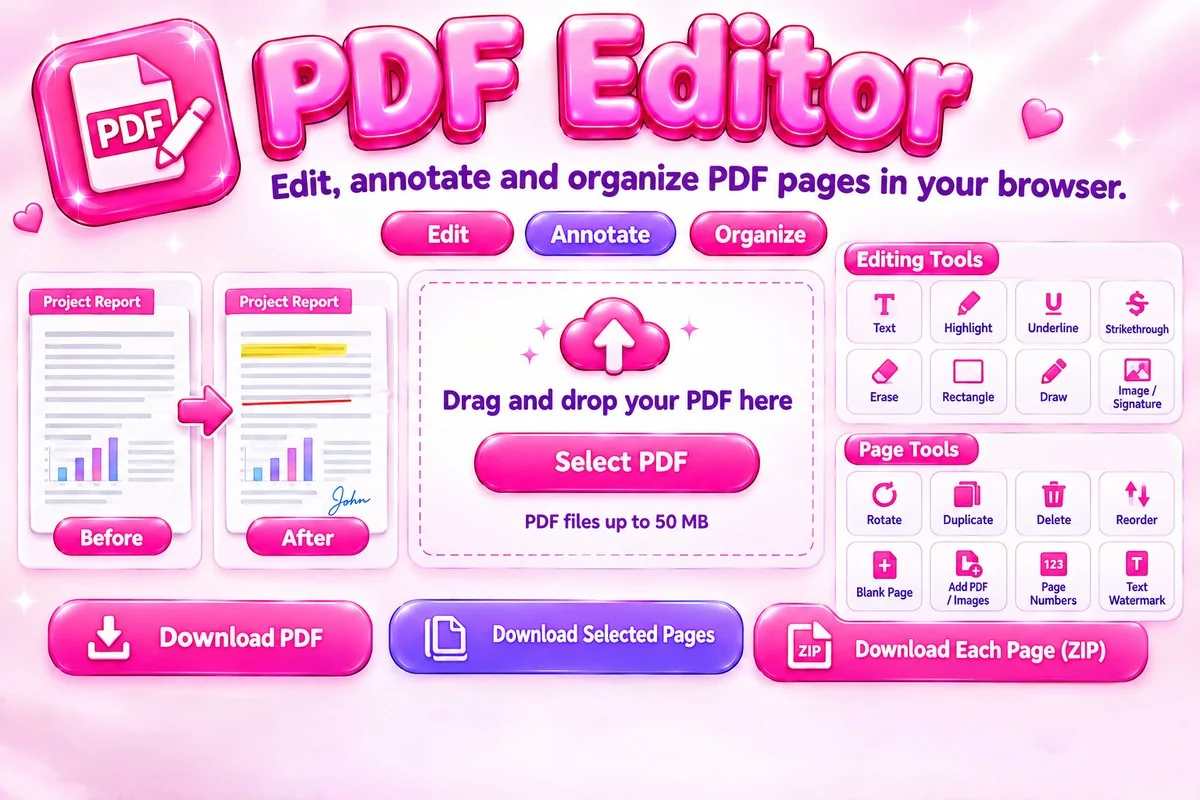
Changes are placed on top of the existing page content. The editor does not rewrite the original text of a PDF, so to correct a word you erase it and add new text above. Password-protected files must be unlocked first.
How to Edit a PDF
- Add your file. Select or drop a PDF, or images to turn into pages.
- Organize pages. Drag, rotate, duplicate or delete them.
- Edit a page. Click it, choose a tool and place your content.
- Save. Download the PDF, selected pages or each page in a ZIP.
Tips for Clean Results
- Type your text first, click on the page to place it, then drag it into position with the Select tool.
- Use Erase for sensitive details. It covers the area with a white box in the saved PDF, so check the result before sharing.
- Add a signature by choosing a PNG with a transparent background in the Image tool, or sign with the Draw tool.
- Use the Undo button after a mistake. It also reverses page moves, rotations and deletions.
- Large files take longer to save. Remove pages you do not need before downloading.
When This Tool Helps
Fill in forms by placing text, sign a contract, mark up a draft, remove a blank page, reorder slides exported as PDF, or add page numbers to a report. To only join or cut files, try the PDF merger and splitter, and to shrink the result use the PDF compressor.
Frequently Asked Questions
Are my PDF files uploaded to a server?
No. Your files are opened and saved inside your browser, so they never leave your device. The PDF libraries are loaded from a public script host the first time you add a file.
Can I change the existing text in a PDF?
Not directly. This editor places new content on top of the page. To fix a word, cover the old text with the Erase tool and add new text above it. For large rewrites, edit the original document and export it again.
What can I add to a page?
You can add text, images and signatures, highlights, underlines, strikethrough, rectangles, freehand drawing and white erase boxes. You can also add page numbers, a text watermark and document details.
Can I merge or split pages with the editor?
Yes. Add more PDFs or images to join them, drag pages into a new order, then select pages and use Download Selected Pages to extract them. Download Each Page (ZIP) saves every page as its own PDF.
Which files and sizes are supported?
You can add PDFs up to 50 MB each and JPG, PNG or WebP images, with up to 500 pages in total. Password-protected PDFs cannot be opened, so remove the password in the program that created them first.
Does it support Hindi and other languages?
Yes. Text that standard PDF fonts cannot show, such as Hindi, Arabic or emoji, is saved as a picture of the text so it looks right. That text cannot be selected or searched later.