About This QR Code Generator
A QR code is a square barcode that a phone camera can read to open a link, join Wi-Fi, save a contact or start a payment. This QR code generator creates codes for eleven kinds of content and lets you style them with your own colors, shapes and logo. Everything happens in your browser, so what you type is never uploaded.
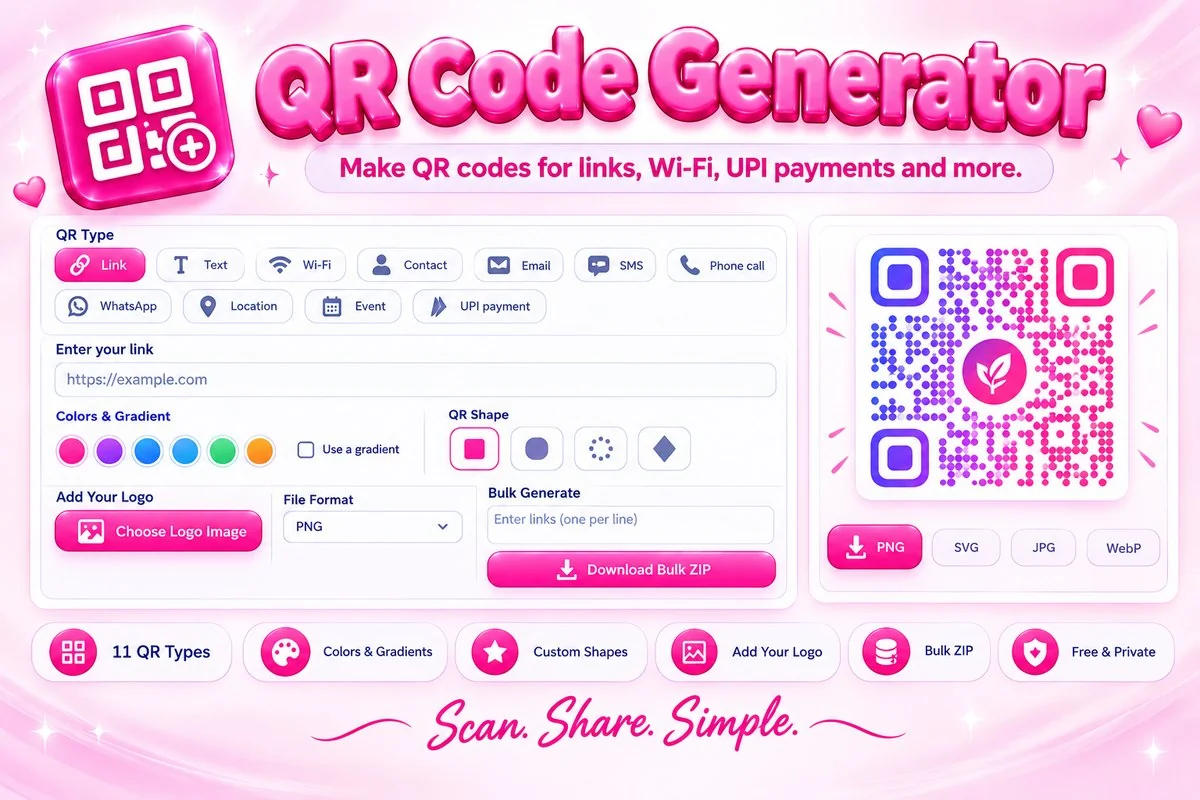
Choose a type such as Link, Wi-Fi, Contact, WhatsApp, Location, Event or UPI payment, fill in the fields, and the code updates instantly. Pick a color theme or a gradient, change the dots and corner eyes, add a logo and a label such as Scan me, then download the code as PNG, SVG, JPG or WebP. A built-in check warns you if the colors or logo may stop phones from scanning it.
How to Make a QR Code
- Choose the type of content, then fill in the fields. For a website, just type the link.
- Pick colors and shapes. Keep the code dark on a light background for the most reliable scanning.
- Optionally add a logo and a label. The tool raises error correction for you when a logo is used.
- Choose a size and a format, press Download, and test the code with your phone before you print it.
Tips for QR Codes That Scan
- Use strong contrast: a dark code on a light background. Light codes on dark backgrounds are often unreadable.
- Keep the margin at 4 modules and the logo under about 25 percent of the code.
- Print the code at least 2 cm (about 1 inch) wide, and use SVG for posters, banners and packaging.
- Use a short link. Fewer characters make a simpler code that scans faster, even from a distance.
When This Tool Helps
Use it for menus and shop counters, business cards, event posters, product packaging, Wi-Fi cards for guests, and UPI payment codes for small businesses. To place a code on a photo or add your brand to it, try the Image Watermark Adder.
Frequently Asked Questions
Is my data uploaded to a server?
No. The QR code is built in your browser, so the link, Wi-Fi password or contact details you type are never sent anywhere.
Do these QR codes expire?
No. The data is stored inside the code itself, so it keeps working forever and does not depend on this website. Because it is not a redirect, the content cannot be changed later.
Why will my QR code not scan?
The most common reasons are low contrast, a light code on a dark background, a margin that is too small, or a large logo covering the code. The scan check under the preview warns you about these.
Can I add my logo?
Yes. Upload a PNG, JPG, WebP or SVG logo. The tool raises error correction automatically and clears the dots behind the logo so the code stays readable.
What can I put in a QR code?
Links, text, Wi-Fi details, contact cards, email, SMS, phone numbers, WhatsApp chats, map locations, calendar events and UPI payment requests.
Which format should I download?
Use PNG for screens and documents, and SVG for print and large signs because it stays sharp at any size. JPG and WebP give smaller files.